

Description
Download Websnapshot – Free Screen Capture Tool for Windows, Mac, Android & iOS
Websnapshot is a lightweight, free screen capture utility designed for Windows users, offering fast and efficient screenshot capabilities. Developed by Daniel, this tool simplifies the process of capturing your screen with minimal effort. Whether you're documenting software bugs, creating tutorials, or saving important web content, Websnapshot delivers a seamless experience. With support for full-screen, window, and custom region captures, it’s ideal for both casual users and professionals. The software is easy to install and runs without consuming significant system resources, making it a secure and reliable choice. Websnapshot also supports automatic saving and customizable file formats, ensuring your snapshots are organized and accessible. With regular updates and a user-friendly interface, this tool stands out as one of the best free screen capture apps available today.
Key Features of Websnapshot
One of the standout aspects of Websnapshot is its simplicity combined with powerful functionality. The software supports multiple capture modes, including full-screen capture, window capture, and region selection. This flexibility allows users to tailor their screenshot process to their specific needs. Whether you're capturing a lengthy webpage, a specific application window, or a small section of your screen, Websnapshot adapts effortlessly.
Another notable feature is the instant preview and quick edit capability. After capturing a screenshot, users can view it immediately in a built-in viewer. From there, basic editing tools like crop, blur, and annotation are available—perfect for highlighting key details without needing a separate image editor. This is especially useful for educators, support teams, and content creators who need to share annotated screenshots quickly.
Websnapshot also supports automatic file saving to a designated folder, reducing the risk of losing important captures. You can choose your preferred file format—PNG, JPG, or BMP—ensuring compatibility with most platforms and applications. The tool integrates with the system clipboard, allowing for instant copy and paste into emails, documents, or messaging apps. Additionally, it supports keyboard shortcuts for rapid access, making it ideal for users who rely on speed and efficiency.
For those concerned about privacy, Websnapshot does not collect user data or send screenshots to external servers. All captures remain local, enhancing security and peace of mind. With regular updates that improve stability and performance, Websnapshot continues to evolve while maintaining its core promise: a free, fast, and secure screen capture experience.
How to Install and Use Websnapshot on Windows, Mac, Android & iOS
Getting started with Websnapshot is straightforward and takes just a few minutes. First, visit the official website and download the appropriate version for your operating system—Windows, Mac, Android, or iOS. The installer is lightweight and does not require administrator privileges on Windows, making it safe for both personal and office use.
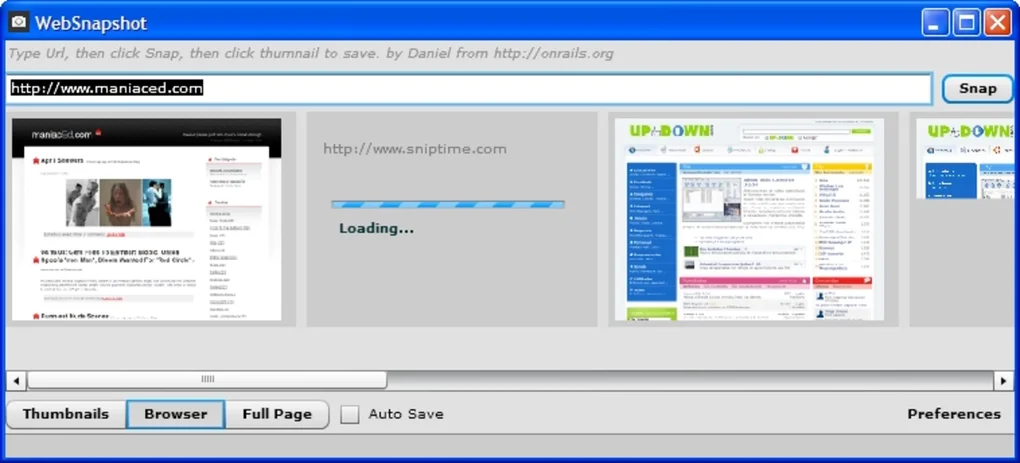
Once downloaded, run the installer and follow the on-screen instructions. The setup process is quick and does not include any bundled ads or third-party software. After installation, launch Websnapshot from your desktop or application menu. The main interface is clean and intuitive, with clearly labeled buttons for full-screen, window, and region capture.
To take a screenshot, simply click the desired capture mode. For region capture, click and drag to select the area you want to record. The screenshot is instantly captured and displayed in the preview window. Here, you can use the built-in tools to annotate, crop, or blur sensitive information before saving. You can also copy the image directly to the clipboard with a single click.
For advanced users, Websnapshot allows customization of default save locations, file naming conventions, and keyboard shortcuts. These settings can be accessed via the Preferences menu, ensuring a personalized experience. The app also supports drag-and-drop functionality, so you can easily import screenshots from other sources for editing.
On mobile devices, the Android and iOS versions offer touch-based controls, making it easy to capture and share screenshots directly from your smartphone or tablet. Whether you're on a laptop or a mobile device, Websnapshot ensures consistent performance and ease of use across platforms.
Compatibility & System Requirements
Websnapshot is designed to be highly compatible across modern operating systems. On desktops, it runs smoothly on Windows 7 and later, including Windows 10 and Windows 11. For Mac users, the app is compatible with macOS 10.14 (Mojave) and newer, supporting both Intel and Apple Silicon (M1/M2) chips. This broad compatibility ensures that most users can benefit from the tool regardless of their hardware.
For mobile users, Websnapshot is available on both Android (version 6.0 and above) and iOS (iOS 12 and later). The mobile versions are optimized for touchscreens and offer a responsive interface that adapts to different screen sizes. This makes it ideal for users who need to capture content on the go or share visual feedback from their smartphones.
System requirements are minimal. The software requires only 50 MB of disk space and 100 MB of RAM to run efficiently. It does not require a dedicated graphics card or high-end processor, making it suitable for older or low-spec machines. This low resource footprint ensures that Websnapshot runs smoothly even when multiple applications are open.
Additionally, Websnapshot supports both 32-bit and 64-bit systems, ensuring broad accessibility. It also works with external monitors and multi-display setups, allowing users to capture content from any connected screen. Whether you're using a desktop, laptop, tablet, or smartphone, Websnapshot delivers consistent performance across all devices.
Pros and Cons of Websnapshot
- Pros:
- Completely free with no hidden costs or in-app purchases
- Lightweight and fast, with minimal impact on system performance
- Supports multiple capture modes: full screen, window, and region
- Instant preview and built-in editing tools (crop, blur, annotate)
- Automatic saving to customizable folders
- Secure—no data collection or cloud uploads
- Available for Windows, Mac, Android, and iOS
- Regular updates for improved stability and features
- Cons:
- Limited to basic editing features—no advanced image manipulation
- No built-in image sharing or cloud integration
- Interface is minimalistic; may feel too simple for power users
- Does not support video recording or screen capture
- Only available in English (no multilingual support)
Frequently Asked Questions (FAQ)
- Is Websnapshot free to download and use?
Yes, Websnapshot is completely free to download and use. There are no premium tiers, in-app purchases, or trial periods. The developer, Daniel, offers it as a no-cost tool to help users capture screenshots efficiently.
- Can I use Websnapshot on Mac and mobile devices?
Yes, Websnapshot is available for macOS (10.14 and above), Android (6.0+), and iOS (12+). This multi-platform support ensures you can capture screenshots across your entire digital ecosystem.
- Does Websnapshot save screenshots automatically?
Yes, you can configure Websnapshot to automatically save screenshots to a folder of your choice. You can also set custom file names and formats (PNG, JPG, BMP) for organized storage.
- Is my data safe when using Websnapshot?
Yes, Websnapshot is secure. All screenshots are stored locally on your device. The software does not collect user data, send files to the cloud, or display ads—ensuring your privacy is protected.
- Can I edit screenshots after capturing them?
Yes, Websnapshot includes basic editing tools such as crop, blur, and annotation. These allow you to highlight important areas or hide sensitive information before saving or sharing.
- Does Websnapshot support keyboard shortcuts?
Yes, you can assign custom keyboard shortcuts for each capture mode, enabling quick access without navigating the interface.
Conclusion: Why Websnapshot Stands Out Among Free Screen Capture Tools
If you're looking for a reliable, free, and secure screen capture tool that works across Windows, Mac, Android, and iOS, Websnapshot is an excellent choice. Its lightweight design, intuitive interface, and powerful yet simple features make it ideal for students, professionals, educators, and casual users alike. While it lacks advanced editing and video capture features, its core purpose—capturing high-quality screenshots quickly and securely—is executed flawlessly.
With automatic saving, instant previews, and strong privacy protection, Websnapshot offers peace of mind and efficiency. The regular updates ensure long-term usability and compatibility with new operating systems. Whether you're documenting a bug, creating a tutorial, or sharing a moment from your screen, Websnapshot delivers results fast and reliably.
Ready to simplify your screenshot workflow? Download Websnapshot today and experience a free, secure, and user-friendly screen capture solution that works on every device you use.
Guides & Tutorials for Websnapshot
How to install Websnapshot
- Click the Preview / Download button above.
- Once redirected, accept the terms and click Install.
- Wait for the Websnapshot download to finish on your device.
How to use Websnapshot
This software is primarily used for its core features described above. Open the app after installation to explore its capabilities.
User Reviews for Websnapshot 0
No reviews found





